System report
Axis support usually asks for the system report of a device. System report downloads the system reports of all selected devices and saves them in one ZIP file. It works like “Get system report” in AXIS Device Manager.
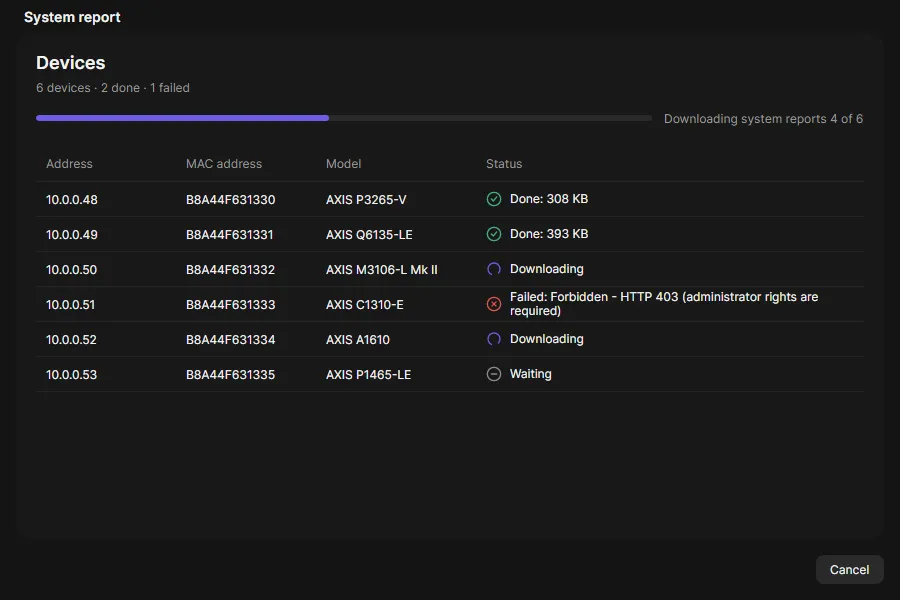
Download system reports
Section titled “Download system reports”- On the Devices page, select the devices.
- Click System report in the toolbar.
- Choose where to save the ZIP file. The default name is
oadm-system-reports-<date>.zip. - Watch the progress. Each device shows Waiting, Downloading, Done with the file size, or Failed with the reason.
- When all devices are done, OADM puts the reports into one file and saves it. The window shows how many reports were saved and how many failed.
What is in the ZIP file
Section titled “What is in the ZIP file”- One system report per device, unchanged, named after the address, MAC address, model and time.
- For video devices the report includes a snapshot, as Axis support asks for.
summary.txt: when the file was made, one line per report, and the devices that failed with their reason.
Good to know
Section titled “Good to know”- A system report takes about half a minute per device. OADM downloads four at a time.
- The device account OADM uses must be an administrator. Otherwise the device answers “Forbidden - HTTP 403 (administrator rights are required)”.
- Devices that need a login, have no password yet or have a changed certificate are skipped with the reason.
- Cancel or closing the window stops the download. The saved file is then incomplete; delete it.
- The System report only reads from the devices. It never changes anything.