Certificates
The context menu group Security holds the certificate tasks. Most of them use the certificate authority (CA) of the PKI page: OADM signs the device certificates itself, and devices with such a certificate show as Trusted in the device list.
Enable or disable HTTPS
Section titled “Enable or disable HTTPS”Enable HTTPS gives each device its own HTTPS certificate from the OADM CA:
- The device creates a key. The private key never leaves the device.
- OADM signs the request with the device’s IP addresses and host names.
- OADM installs the certificate, switches the web server to it (HTTP only becomes HTTP and HTTPS) and connects again over HTTPS.
- Older OADM certificates that nothing uses any more are removed.
Disable HTTPS sets the device to HTTP only. It asks first: video systems that use HTTPS lose the connection. The certificates stay on the device.
Enable or disable IEEE 802.1X
Section titled “Enable or disable IEEE 802.1X”Enable IEEE 802.1X installs the RADIUS server CA and the OADM CA, issues a client certificate and turns on 802.1X with EAP-TLS. EAPOL version, identity and the RADIUS server CA are set on the PKI page. Before it changes anything, OADM checks the device clock: more than 5 minutes off fails with “Set the date and time first. Nothing was changed.”
Disable IEEE 802.1X turns 802.1X off. The certificates stay.
Renew certificates
Section titled “Renew certificates”Renew certificates renews the HTTPS and 802.1X certificates that OADM issued, with a new key. A purpose without an OADM certificate is skipped, for example “No OADM HTTPS certificate on this device”.
View and delete certificates
Section titled “View and delete certificates”View certificates lists the certificates of the selected devices, grouped as client, server and CA certificates: name, issued by, issued to, valid to, in use and source (OADM or other). It reads up to 4 devices at a time and changes nothing.
Delete certificates shows the same list with check boxes. Certificates in use and the Axis factory certificates are greyed and cannot be deleted. Choose the certificates, click Delete certificates and confirm.
Install certificates
Section titled “Install certificates”Install certificates installs your own .pfx or .p12 files.
- Choose Use for: HTTPS (server certificate), IEEE 802.1X (client certificate) or CA certificates only.
- Choose the files and enter their password.
- Each file goes to the selected device whose MAC address, IP address or host name it names. The table shows the match and any problem.
- Click Install and confirm.
A device without a matching file ends with a warning and nothing is sent.
Install CA certificates
Section titled “Install CA certificates”Install CA certificates installs one or more CA certificates on many devices, for example of a RADIUS server or a video management system. It does not need the OADM CA.
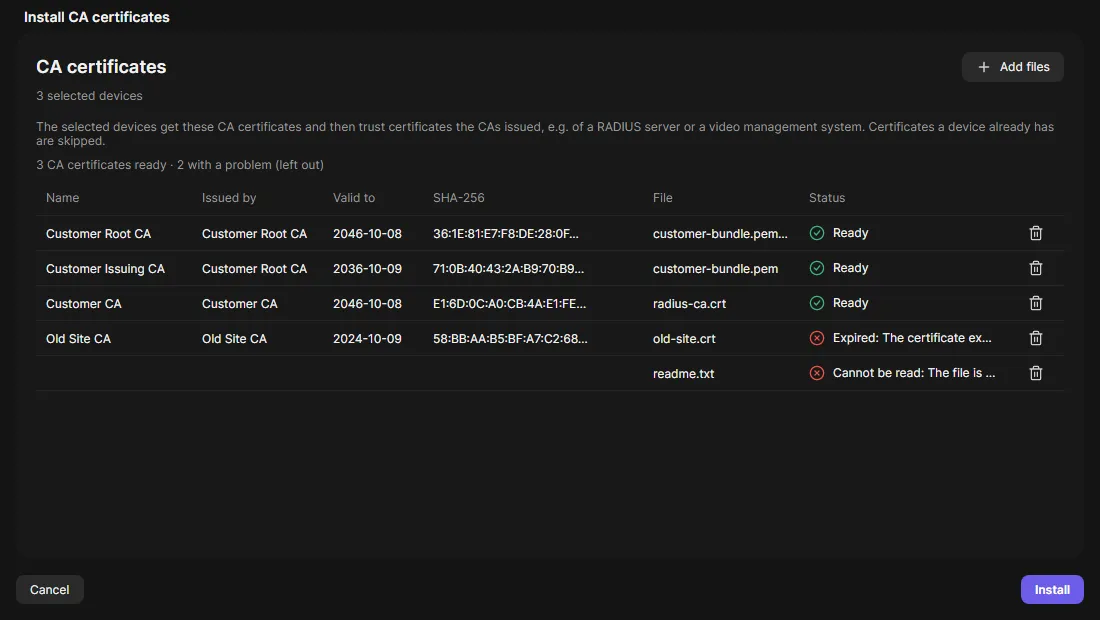
- Click Add files. PEM and DER files work, also files with several certificates.
- The table lists each certificate once. A row with a problem says why, for example “Not a CA certificate” or “Expired”, and is left out.
- Click Install and confirm.
Certificates a device already has are skipped. At most 150 certificates per run.
What OADM checks first
Section titled “What OADM checks first”- The device has AXIS OS 11.11 or later, read fresh from the device.
- A device whose certificate changed is refused until you accept the new certificate.
- The CA certificates are valid CA certificates and not expired.
- For deleting: the certificate exists, is not in use and is not a factory certificate.
A failed check ends with “Nothing was changed”.