NTP server
The OADM server can be the time server for your devices. This helps on sites without internet access or without another time server. Without an upstream server OADM serves its own computer’s time. With an upstream server it passes on that server’s time.
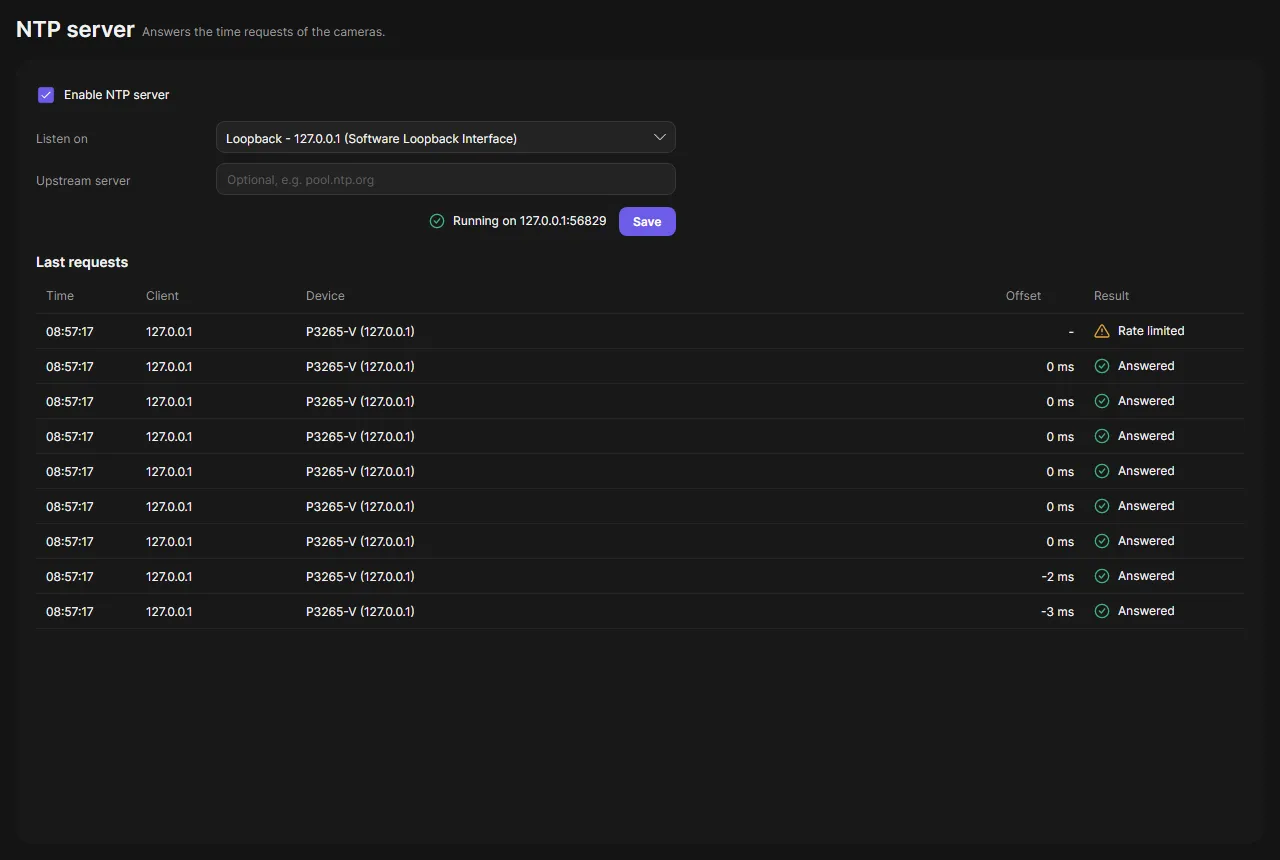
Turn on the NTP server
Section titled “Turn on the NTP server”-
Open NTP server in the navigation rail.
-
Check Enable NTP server.
-
In Listen on, choose the network interface, or All interfaces.
-
Optional: enter an Upstream server (host name or IP address).
-
Click Save.
With an upstream server OADM asks it once first. If it does not answer, the setting is not saved and the error shows below the field.
-
Check the status next to Save. It says, for example, “Running on 10.0.0.17:123”.
Last requests lists the last 40 requests with time, client, device and the offset of the client’s clock.
Point devices to OADM
Section titled “Point devices to OADM”- On the Devices page, select the devices.
- Right-click and choose Maintenance > Use OADM as NTP server.
Each device becomes a task that sets OADM’s address as NTP server and checks the result. The NTP server must be running.
When the port is in use
Section titled “When the port is in use”The NTP server needs UDP port 123. If the status says “Port 123 is in use by another program” or “Insufficient permission to use port 123”, see your system:
The Windows Time service often holds port 123. Stop it with net stop w32time; OADM starts serving within 30 seconds.
The installed service opens the Windows firewall for UDP 123 by itself while the NTP server is on.
The server must run as root, or allow the port once with
sudo setcap 'cap_net_bind_service=+ep' <server exe>. chronyd or ntpd must not hold port 123.
For a single interface the server must run with sudo. All interfaces works without it. The installed service runs as root.
Good to know
Section titled “Good to know”- If the upstream server stops answering, OADM serves its own time and shows a warning. It switches back by itself.
- A warning shows when the server clock differs from the upstream by more than one second. OADM never sets the computer’s clock.
- Clients that ask too often are slowed down.
- The settings are kept when the server restarts.
- Changing the settings needs an administrator. Operators can run Use OADM as NTP server.