Add devices
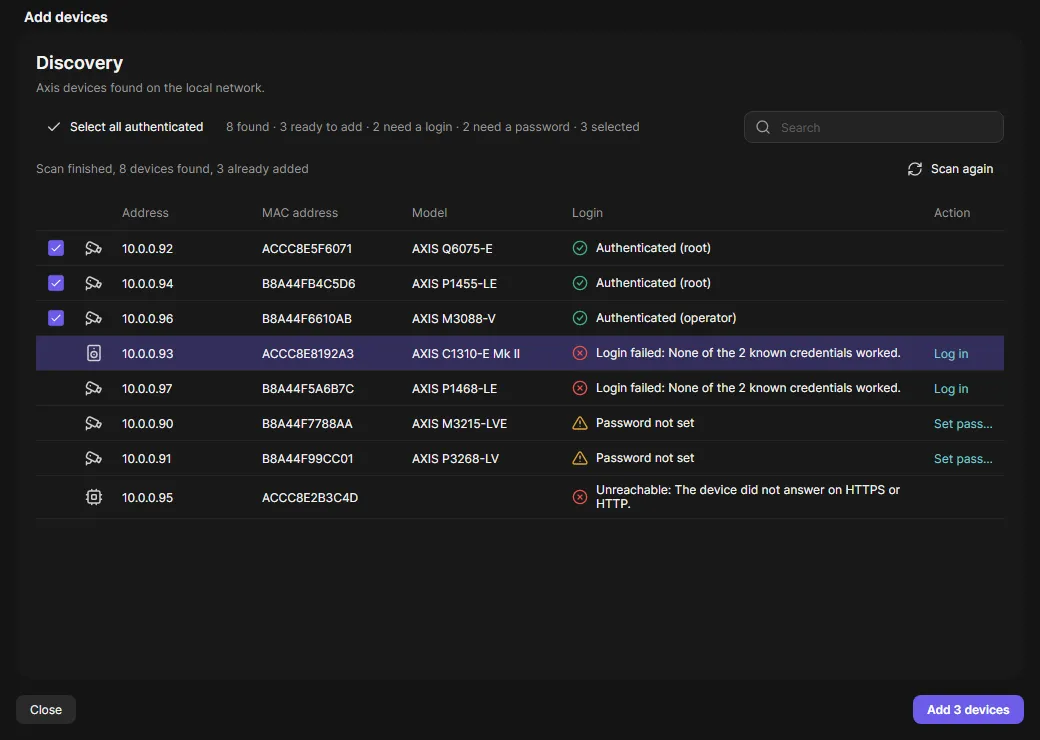
Adding devices is one page, no wizard. OADM logs in to every device it finds with the passwords on your Credentials page, so most devices are ready to add right away.
Ways to find devices
Section titled “Ways to find devices”Click Add on the Devices page and choose:
- Discovery: finds the Axis devices on the local network. Runs for 30 seconds (change it in Settings).
- Network range: enter From and To, press Scan. Several ranges add to the same list.
- Add manually: an IP address or host name, optionally with port and
https://. Press Find. - Import from file: a CSV file (for example an export from OADM) or a text file with one address per line.
Stop ends a running search; the devices found stay in the list. Scan again searches once more. Devices OADM already manages are not listed.
Login results
Section titled “Login results”| Result | What to do |
|---|---|
| Authenticated (user) | Ready. The row is checked. |
| Login failed | Click the row or Log in, enter user name and password, Retry. A password that works is tried on the other failed devices too. |
| Password not set | Factory default. Set password sets the first root password when you add the device. Use for all factory-default devices applies it to every one. |
| Unreachable | The device does not answer, or did not identify itself as an Axis device. No password was sent to it. |
- Check the devices you want. Select all authenticated checks every ready device.
- Click Add 3 devices in the footer. The page closes and the devices appear in the list.
Import from a file
Section titled “Import from a file”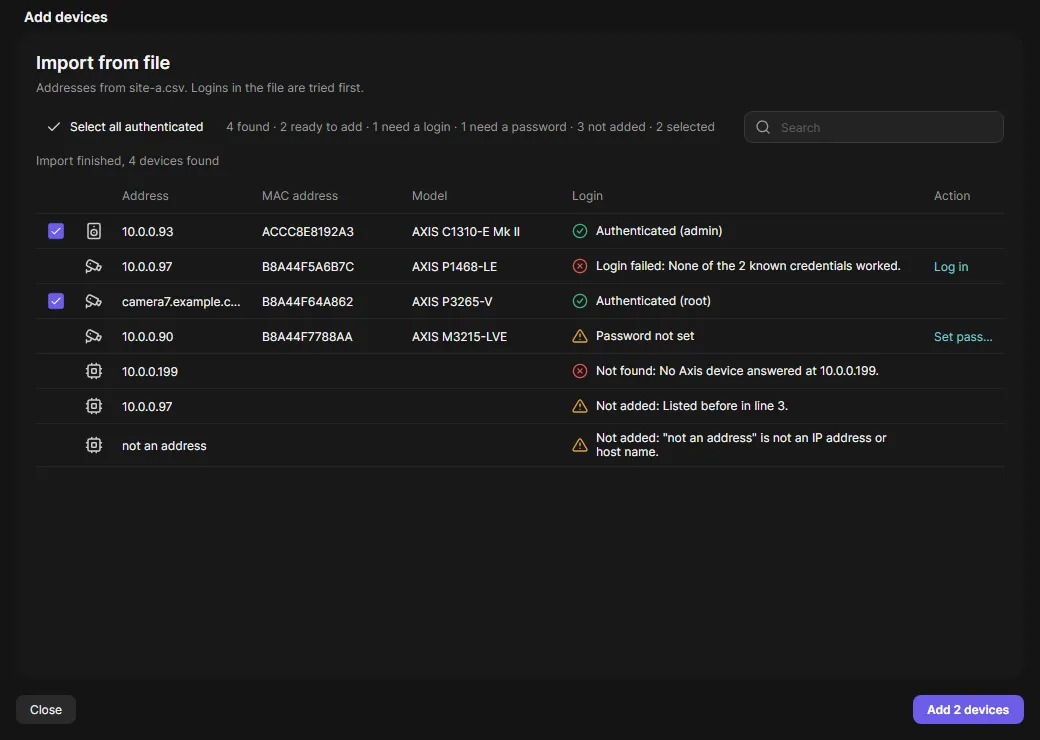
- Columns: Address (or IP address, IP, Host name), optional User name, Password and Tags. Other columns are ignored. Comma or semicolon.
- A password without a user name is for
root. Logins in the file are tried first and are never saved. - Up to 10,000 addresses and 2 MB per file. A line with a problem shows Not added and the reason in its row.
- Tags in the file are given to the devices you add.