Users
Users manages the user accounts of the selected devices: add a user, change a password or role, or remove users. It is in the context menu under Users.
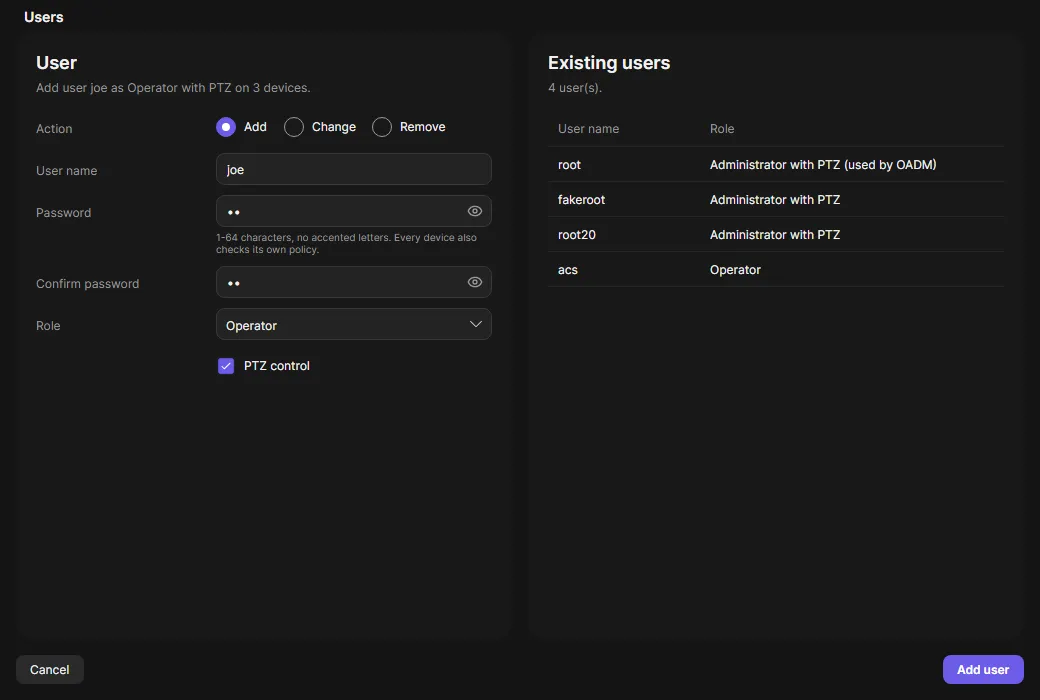
Run it
Section titled “Run it”- Select the devices, right-click and choose Users > Users.
- Existing users lists the accounts of the first selected device.
- Choose the Action:
- Add: User name, Password, Confirm password, Role and PTZ control.
- Change: the user name, then Set a new password and/or Change role. Click a user in the list to fill the name.
- Remove: select the users in Existing users (Ctrl or Shift for several).
- Click Add user, Change user or Remove users. Removing asks for confirmation.
Roles are the same as on the device: Administrator, Operator and Viewer, each with or without PTZ control. User names have 1 to 14 characters: a-z, A-Z, 0-9.
Password rules
Section titled “Password rules”The hint below the password shows the rule of the device:
- no rule: 1 to 64 characters,
- length: at least 15 characters,
- complex: at least 12 characters with upper case, lower case, a digit and a special character.
The device checks the password again.
What OADM checks first
Section titled “What OADM checks first”- The device supports user management.
- The password matches the device’s rule.
- No lock-out: OADM never removes, demotes or changes the password of the account it uses itself, and never
removes or demotes the last administrator. On AXIS OS older than 11.5,
rootcannot be removed. In Remove mode these accounts are greyed and cannot be selected.
A refused device fails with “Nothing was changed”. With several users to remove, every user is checked before the first one is removed.
Check compatibility, Read password policy, Identify OADM account, Read users, Validate change, then one step per write (Add user joe, Remove user joe, Remove user ann), Verify users.
A user that already exists (Add) or is missing (Change, Remove) ends the task with a warning and nothing is written.