Devices page
Columns
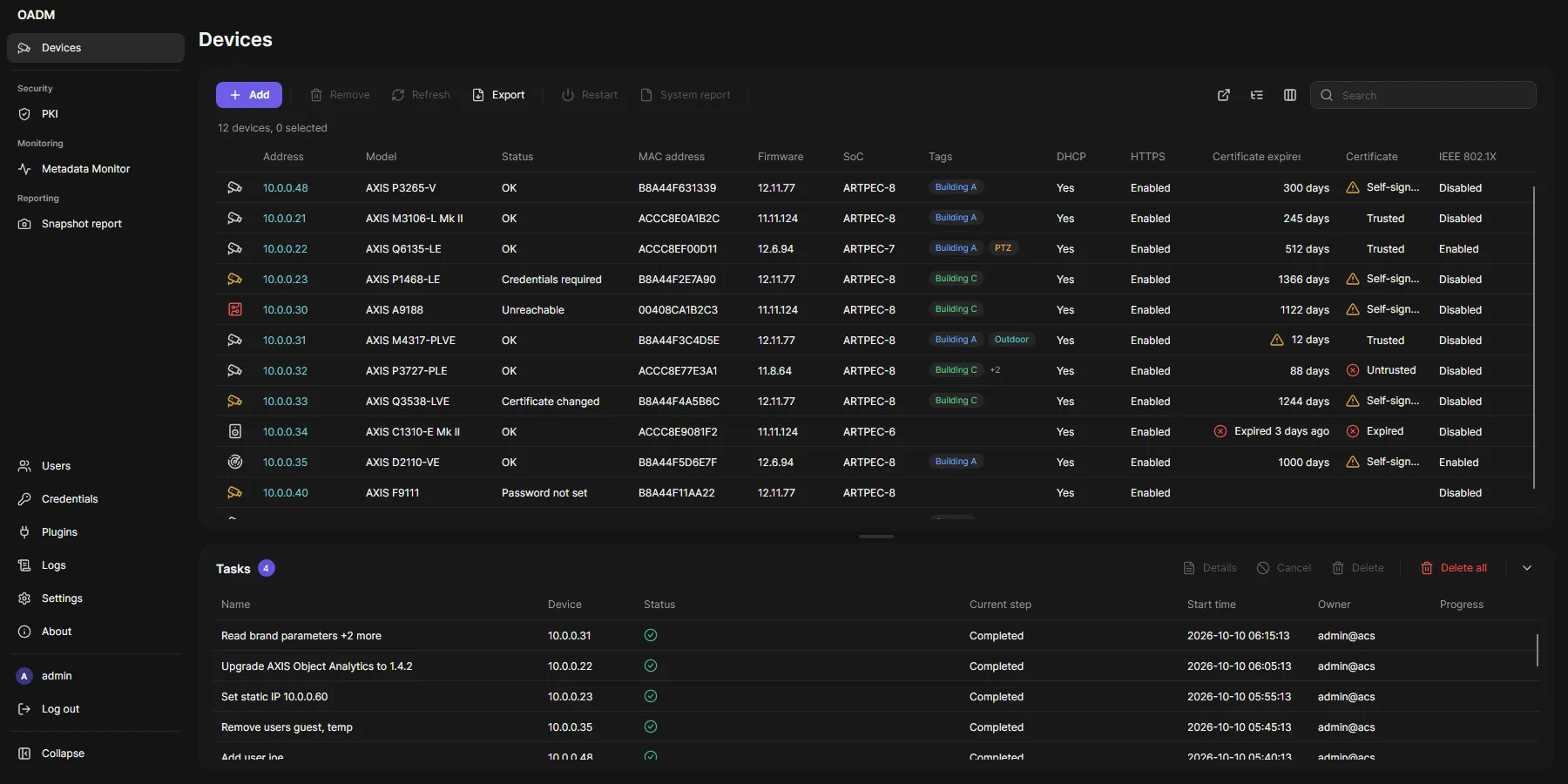
Section titled “Columns”| Column | Shows |
|---|---|
| Icon | Device type. Amber or red when the device needs attention. Click it on a camera for the live view. |
| Address | IP address or host name. Click it to open the device’s web interface. |
| Model, MAC address, Firmware | From the device. |
| SoC | The chip of the device, for example ARTPEC-8. |
| Status | OK, Unreachable, Credentials required, Password not set, Certificate changed. |
| Tags | Your tags. |
| DHCP, HTTPS, IEEE 802.1X | Whether they are on. |
| Certificate expires | Days left for the HTTPS certificate. Amber within 30 days, red when expired. |
| Certificate | Trusted, Self-signed, Untrusted or Expired. |
Click a header to sort. Choose columns with the columns button right of the toolbar. Order and widths are kept per computer. OADM checks every device every 60 seconds and reads all details every 10 minutes.
Toolbar
Section titled “Toolbar”- Add: Add devices.
- Remove, Refresh, Export (the selected devices, or every device the search shows, as CSV).
- Restart, Assign IP address and System report for the selection.
- On the right: AXIS OS release notes, Group by tag, columns and search. The search also finds tags.
Entries that do not fit move into the More menu.
Context menu
Section titled “Context menu”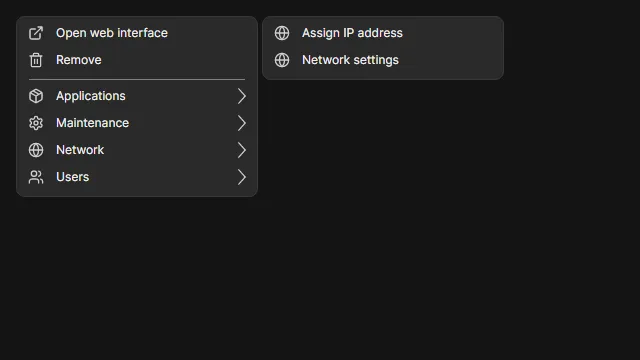
Right-click one or more devices:
- Open web interface, Refresh, Tags.
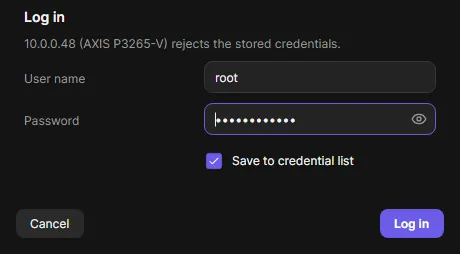
- Log in: only for devices that reject the stored password. Enter the right one for all of them at once.
- Set password: only for factory-default devices.
- One submenu per group with the device tasks. An entry the selection cannot run is grey; hover it to see why (“Needs AXIS OS 11.11 or later: 3 of 5 selected devices”).
- Remove, last.
Certificate changed
Section titled “Certificate changed”When a device presents another HTTPS certificate than the one OADM saved when adding it, the status is Certificate changed and OADM sends nothing to it. Remove and add the device again once you know why it changed.