Snapshot report
The Snapshot report is made for the yearly maintenance check. You see a current snapshot of every video source of your cameras on one page, check them fast and export a PDF report for the customer.
Take snapshots
Section titled “Take snapshots”-
Open Snapshot report in the navigation rail.
Opening the page contacts no device. It shows “No snapshots yet”.
-
Click Create snapshots.
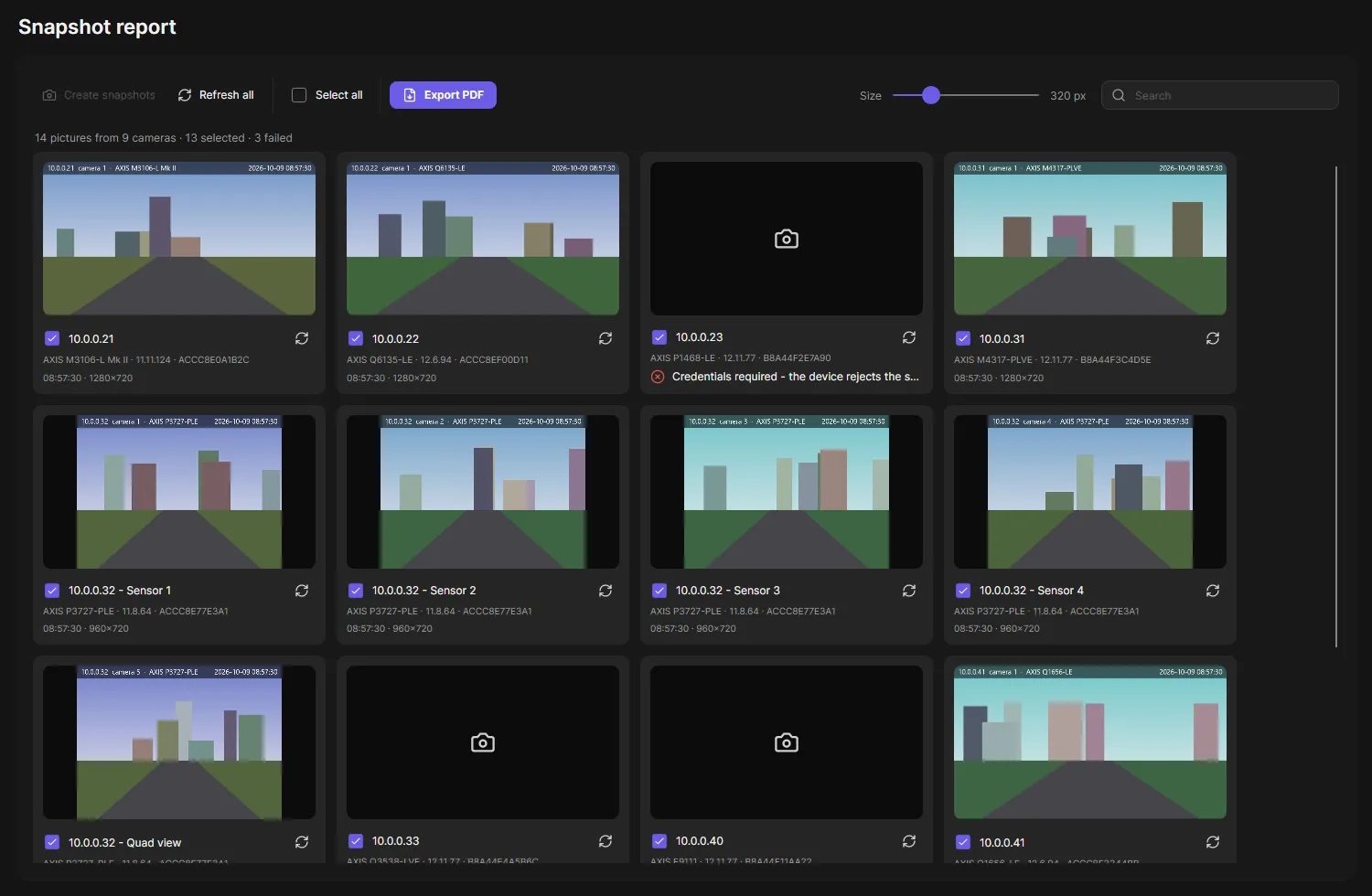
OADM loads one snapshot per video source, four at a time. The progress row shows how far it is.
-
Check the tiles. A camera with several view areas or sensors gets one tile per source.
Click a picture to open a large preview with the device facts and Take new snapshot. The refresh icon on a tile takes a new snapshot of that source only. Refresh all takes new snapshots of all of them.
-
Clear the check box of every tile that should not be in the report. All tiles start selected; Select all selects them again.
Use the Size slider to make the pictures larger or smaller, and the search box to find a camera.
Export the PDF report
Section titled “Export the PDF report”- Click Export PDF.
- Enter Site / customer (required), Technician and the Date (today by default).
- Choose where to save the file.
- OADM takes fresh snapshots in report size, builds the PDF and saves it.
The report starts with a cover page: site, technician, date, a summary (cameras, video sources, online and offline devices, snapshots taken and failed), the firmware versions in use and the certificates that are expired or expire within 30 days. Then follow two snapshots per page, each with the model, MAC address, address, firmware, status, certificate and the time of the snapshot.
OADM remembers the site, the technician and the last folder on this computer.
Good to know
Section titled “Good to know”- The Snapshot report only reads from the devices. It never changes anything.
- Only video devices are listed: cameras, video encoders and intercoms.
- A device that needs a login, has no password yet or has a changed certificate shows one error tile. Fix it on the Devices page first.
- A snapshot that fails keeps the older picture and shows the reason, for example “Timeout after 10 s”.
- If snapshots fail during the export, the dialog stays open with a warning. A failed snapshot shows as a grey box in the PDF.