Metadata Monitor
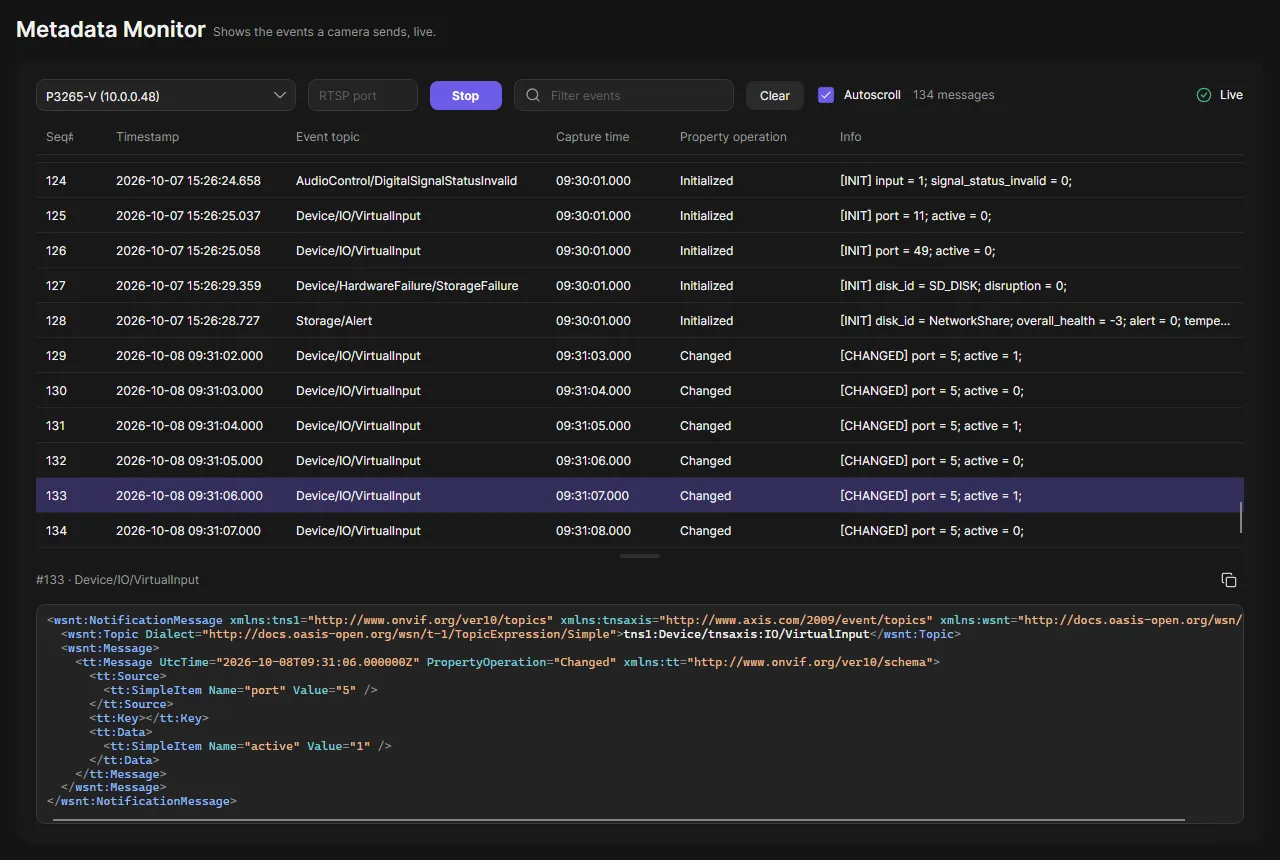
The Metadata Monitor shows the event stream of one camera live, like the AXIS Metadata Monitor tool. Use it to check which events a device sends: I/O ports, virtual inputs, storage, temperature, tampering or events of applications.
Watch events
Section titled “Watch events”-
Open Metadata Monitor in the navigation rail.
-
Choose the camera. Type to jump to a camera in the list.
-
If the camera is behind a router that forwards RTSP to another port, enter that port in RTSP port. Leave it empty for the usual port 554. OADM remembers it for the camera.
-
Click Start.
The status changes to Connecting, then Live. At the start most cameras send the current state of every event, for example one message per virtual input.
-
Click a message to see its XML below the list. The copy button copies it.
-
Click Stop when you are done.
Each row shows the sequence number, the time of the event, the event topic, when OADM received it, the property
operation and an info text such as [CHANGED] port = 1; active = 1;.
Work with the list
Section titled “Work with the list”- The filter searches topic, info and XML.
- Clear empties the list. The stream keeps running.
- Autoscroll keeps the newest message in view. Scrolling up turns it off; scrolling to the end turns it on again.
- The list keeps the newest 10,000 messages.
Good to know
Section titled “Good to know”- One camera at a time. Choosing another camera stops the running stream.
- The OADM server connects to the camera with the stored credentials. Your computer never gets the password.
- Messages are not saved. Copy a single message from the detail view if you need it.
- When the connection breaks, OADM reconnects on its own and shows “Reconnecting”.
- “3 messages lost” next to Live means some events did not arrive complete.
- Devices that need a login, have no password yet or have a changed certificate are refused with the reason.
- The stream stops when you switch to another page.
- The Metadata Monitor only reads. It never changes a device.