Upgrade firmware
Upgrade firmware installs an AXIS OS file on the selected devices. OADM uploads the file, waits for the restart, checks the new version and commits it. It is in the context menu under Maintenance and in the toolbar.
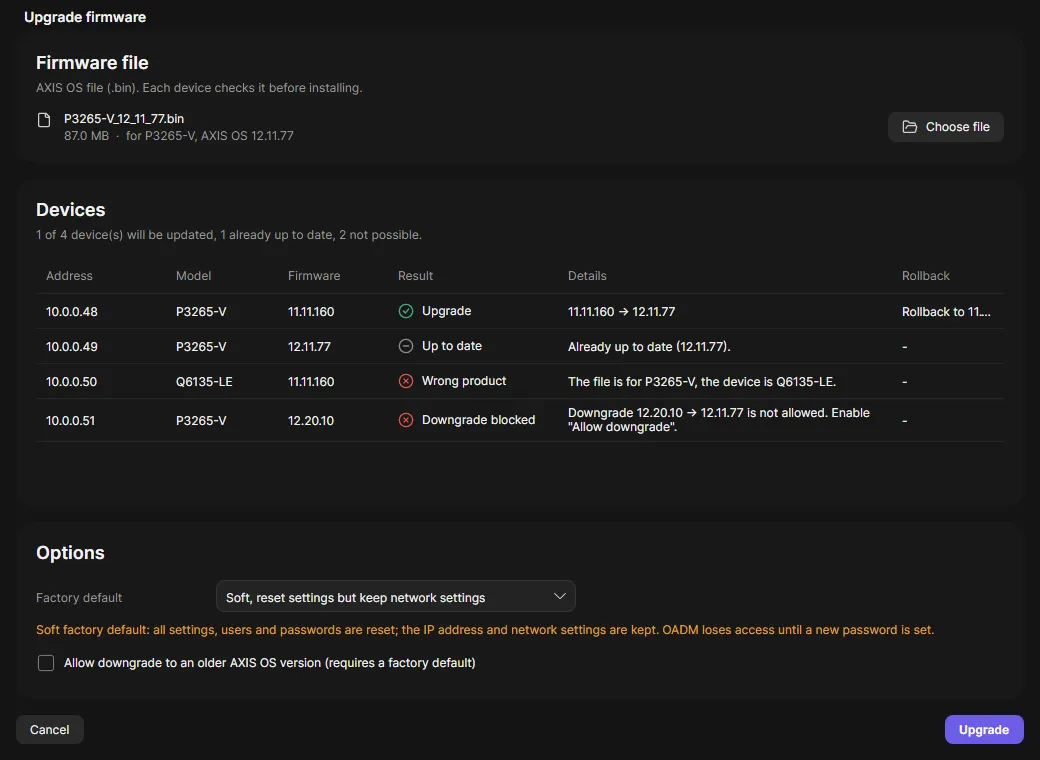
Run it
Section titled “Run it”- Download the AXIS OS file for your model from axis.com. Keep the original file name, for example
P3265-V_12_11_77.bin: OADM reads the product and version from it. - Select the devices, right-click and choose Maintenance > Upgrade firmware.
- Choose the file. The dialog shows its size, product and AXIS OS version.
- Check the device table. The Result column says per device what will happen: upgrade, already up to date, wrong product, downgrade not allowed.
- Choose the Factory default option and, if needed, Allow downgrade to an older AXIS OS version (requires a factory default).
- Click Upgrade. The file is uploaded to the OADM server once, then a task starts per device.
Options
Section titled “Options”| Factory default | What happens |
|---|---|
| None, keep all settings (recommended) | Settings stay. OADM commits the new firmware after it verified the version. |
| Soft, reset settings but keep network settings | Settings, users and passwords are reset. The IP address stays. OADM loses access until a new password is set. |
| Hard, reset everything including the IP address | Everything is reset. A device with a static address falls back to DHCP or 192.168.0.90. |
A downgrade always needs a factory default. The device decides itself if it accepts the older version.
What OADM checks first
Section titled “What OADM checks first”- The device status is OK and the device supports firmware management.
- The file ends in
.binand is between 1 MB and 2 GB. OADM never judges the content: the device checks product and signature itself and refuses a wrong file before it installs anything. - The product in the file name matches the device.
- The same version is not installed again. Such a device ends with the warning “Already up to date”.
- No earlier upgrade is waiting to be committed.
A refused device fails with “Nothing was changed”. The other devices continue.
Check compatibility, Read device info, Validate file, Read firmware status, Upload firmware, Install firmware, Wait for the device to come back, Verify version, Read commit state, Commit firmware.
The device waits up to 30 minutes for the commit. If OADM never confirms the new version, the device rolls back to the old firmware by itself. After a factory default the device commits by itself and the task ends with a warning: set a password or check the address.
Task names
Section titled “Task names”The Tasks pane names each task by what it does: “Upgrade firmware to 12.11.77”, “Downgrade firmware to 10.12.236”, “Install firmware 12.11.77”, plus “ (factory default)” when the device is reset.