Applications (ACAP)
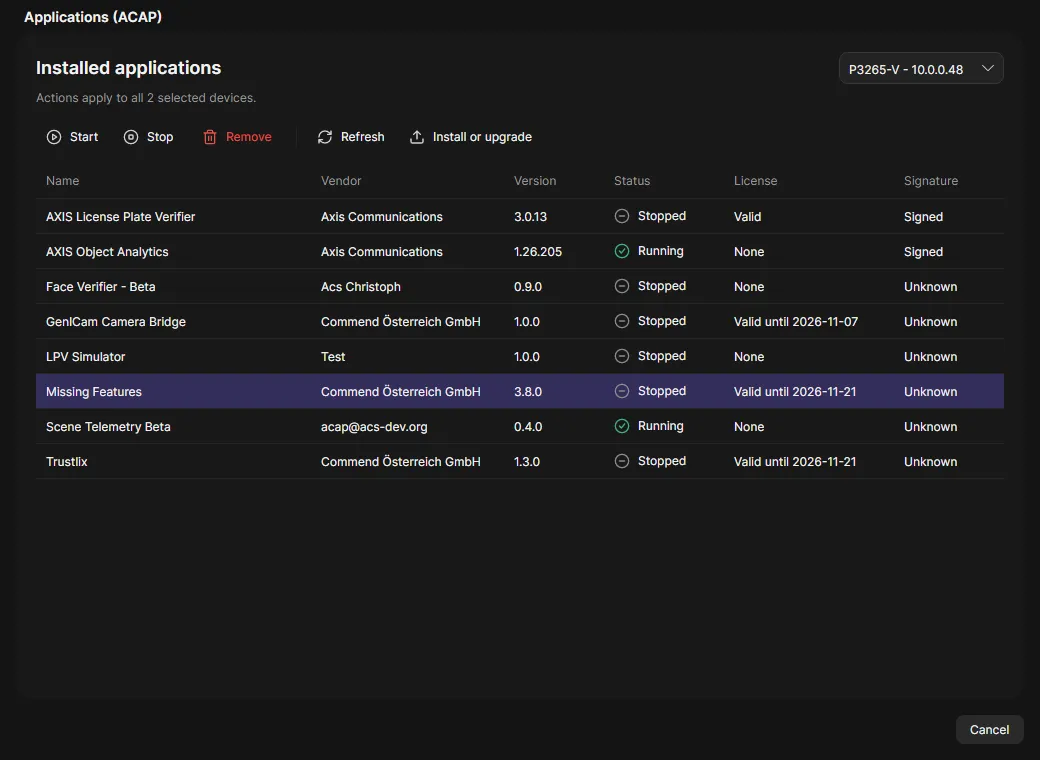
Applications (ACAP) shows the applications on a device and installs or controls them on every selected device. It is in the context menu under Applications.
Install or upgrade
Section titled “Install or upgrade”- Select the devices, right-click and choose Applications > Applications (ACAP).
- Click Install or upgrade and choose the
.eapfile. - The device table shows per device in Result whether it is an install, an upgrade, a reinstall or a downgrade, and any problem. The preview reads up to 25 devices. Other rows say “Checked at install”.
- Turn on Start after install if the application should run right away. Turn on Allow downgrade to install an older version.
- Click Install.
Start, stop or remove
Section titled “Start, stop or remove”Installed applications lists the applications of the first selected device. With several devices, choose the device to show. Select an application and click Start, Stop or Remove. The action runs on every selected device. Remove asks for confirmation below the list: Keep or Remove.
A device that already is in the requested state is left alone. A device without the application ends with a warning.
What OADM checks first
Section titled “What OADM checks first”Before anything is uploaded, OADM reads the package and the device and refuses (Nothing was changed) when:
- the package is not a valid
.eapfile, - the package is built for another processor type,
- the device’s AXIS OS is outside the versions the package supports,
- the package runs as root and the device has AXIS OS 12 or later,
- the package is older than the installed version and Allow downgrade is off,
- the application is part of AXIS OS (bundled), for Remove.
The dialog warns when the device accepts only signed applications or when the vendor differs from the installed one. The device checks the signature itself.
- Install: Check compatibility, Read package, Read device info, Read SDK version, Read unsigned application setting, Read installed applications, Check package, Upload package, Verify installation, and with Start after install Start application and Verify application state.
- Remove, start, stop: Check compatibility, Read installed applications, Remove application (or Start, Stop), Verify.