Network settings
Two tasks in the context menu under Network: Network settings for IPv4, IPv6, DNS and host name, and Assign IP address, the ADM dialog for DHCP or an address range. Both follow a device to its new static address, so it stays managed.
Network settings
Section titled “Network settings”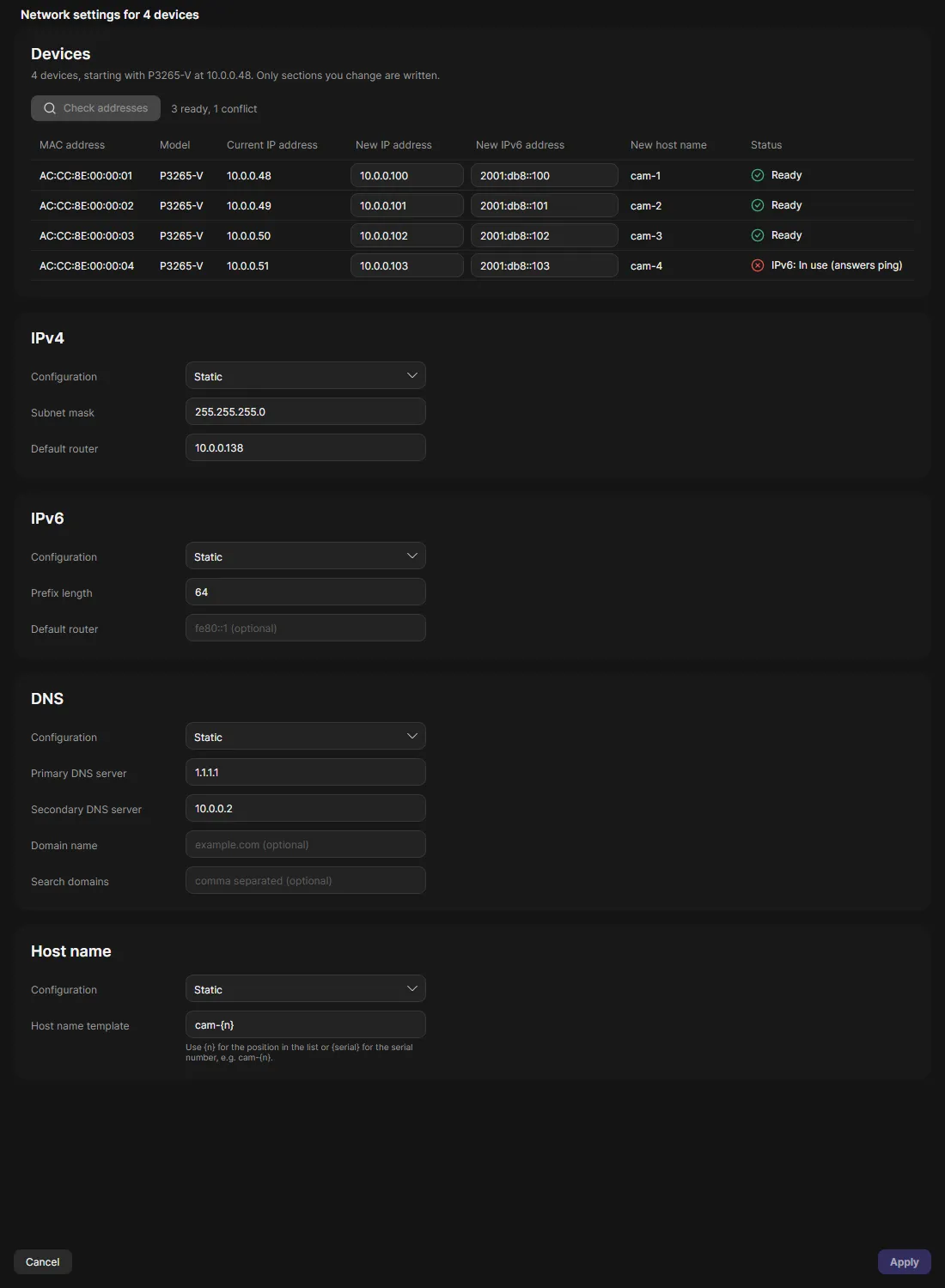
- Select the devices, right-click and choose Network > Network settings.
- Each section (IPv4, IPv6, DNS, Host name) starts at Keep unchanged. Change only what you need. The fields are filled from the first device.
- One device: enter the IP address. Several devices: set each address in the New IP address column of the device table. OADM suggests addresses from the first device’s address and subnet. Subnet mask and default router are shared.
- Several devices can get host names from a template with
{n}(position) or{serial}. - Click Apply. A change that can make devices unreachable asks for confirmation first.
Assign IP address
Section titled “Assign IP address”Also in the toolbar. It works like “Assign IP address to selected devices” in ADM.
- Select the devices and choose Assign IP address.
- Choose Obtain IP addresses automatically (DHCP) and click Finish, or Assign the following IP address range.
- Enter the IP range, Subnet mask and Default router. DNS servers are optional. One device: enter the IP address.
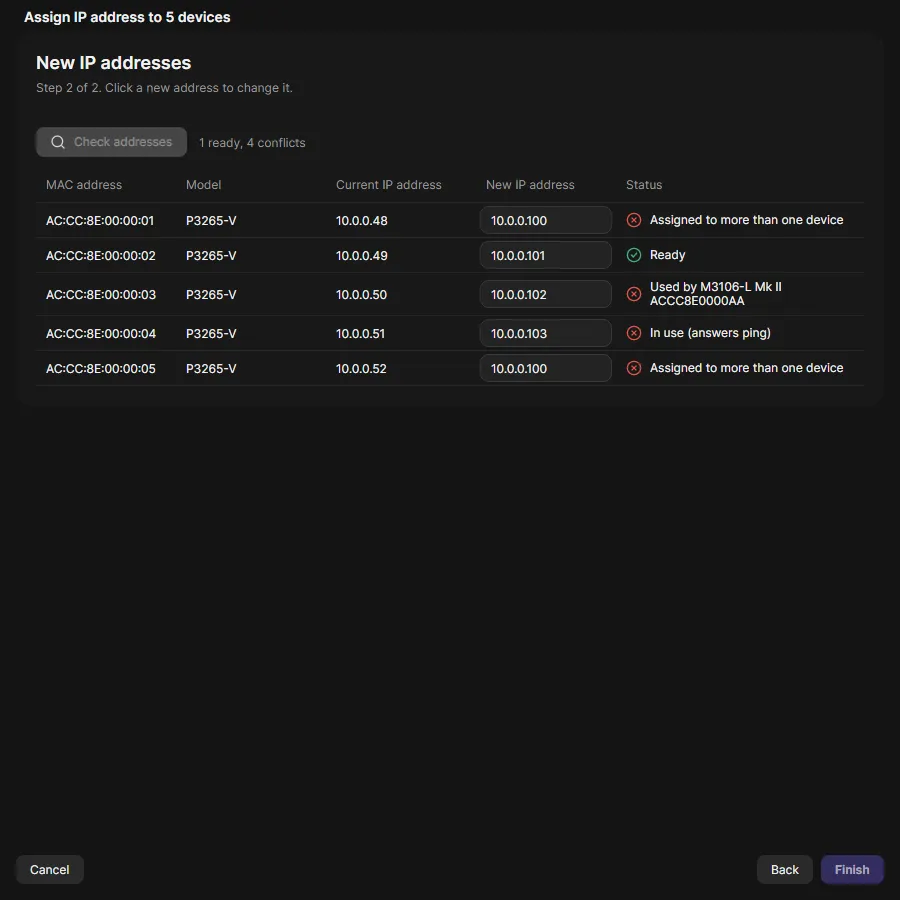
- Click Next. The New IP addresses page lists each device with its current and new address. Edit an address in its cell.
- Click Check addresses to look for addresses in use, then Finish and confirm.
IP range syntax
Section titled “IP range syntax”| Range | Meaning |
|---|---|
192.168.0.* |
192.168.0.1 to 192.168.0.254 |
10.*.1.* |
wildcard in any part |
192.168.0.10-192.168.0.20 |
first to last address |
192.168.0.10-20 |
the same, shortened |
10.10-30.1.101 |
a range in any part |
192.168.0.*,192.168.1.10-20 |
several ranges, separated by commas |
192.168.0.10 |
start address: the next addresses up to the end of the subnet |
OADM suggests the first free addresses in the order of the device list. It skips network and broadcast addresses, the default router, addresses of other managed devices and addresses that answer. With too few addresses the page says “Not enough addresses” and Finish stays disabled.
What OADM checks first
Section titled “What OADM checks first”- Address, subnet mask and router are in one subnet. No duplicate addresses in the batch.
- Check address is free: right before the first change, every new static address gets a ping and a connection attempt on port 80 and 443. If it answers, the task fails with “10.0.0.60 is already in use (answers ping). Nothing was changed.”
- The device supports the change. Devices without the network settings function use the older parameter interface.
After the change
Section titled “After the change”For a new static address OADM waits up to 90 seconds for the device at the new address, checks the serial number and moves the device in the list. If the device does not answer there, the task ends with a warning and OADM keeps the old address. With DHCP the new address is unknown. OADM finds the device again on its own within a few minutes.